Product · How it works
How it works
Add your aircraft. Zephr lists every airworthiness directive that applies to it, and only those. You decide, it is recorded, and the record is ready for the audit.
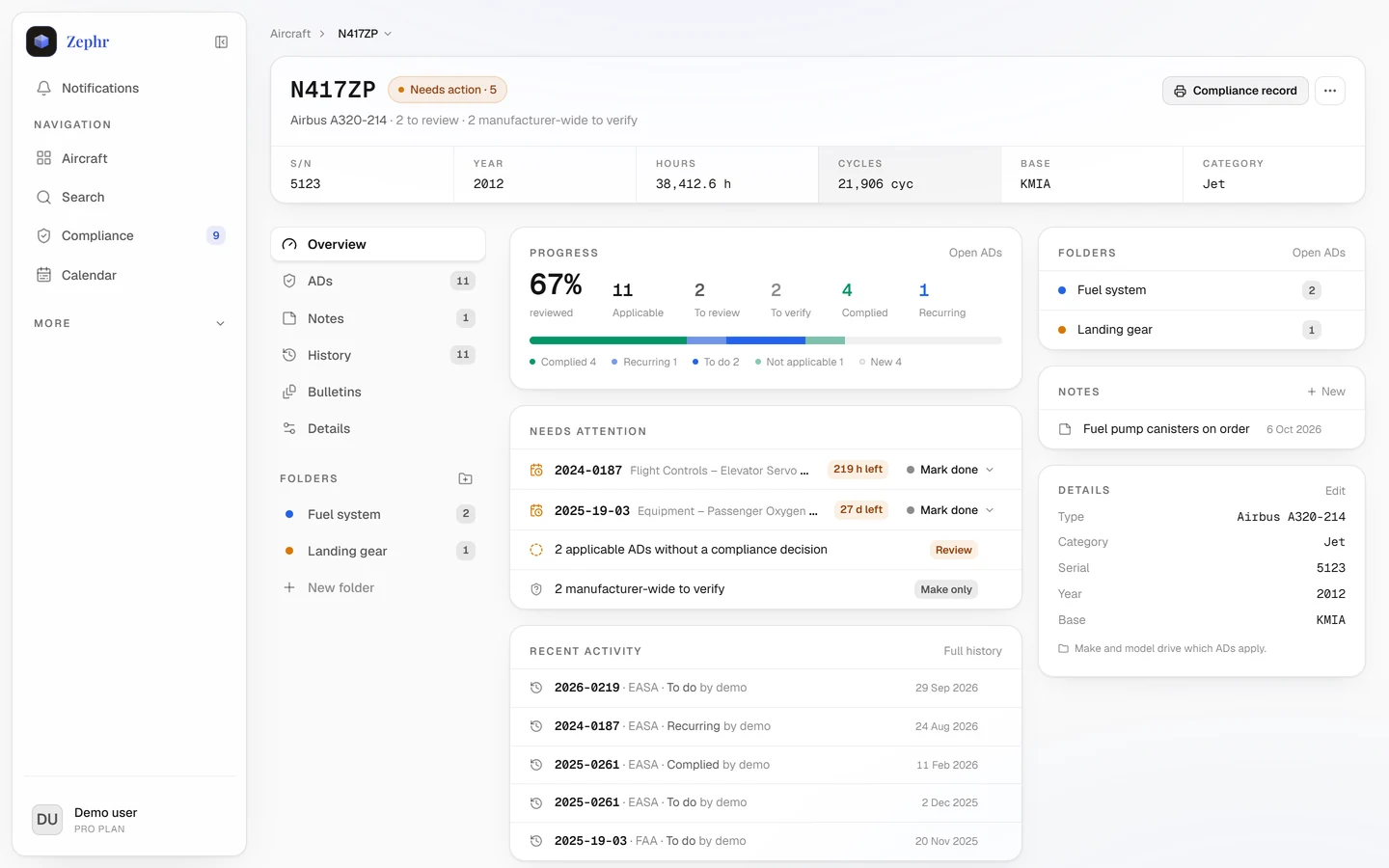
The app as it is, in a demo workspace: the aircraft, directives and records it shows are illustrative.
01Add your fleet
You start with your aircraft.
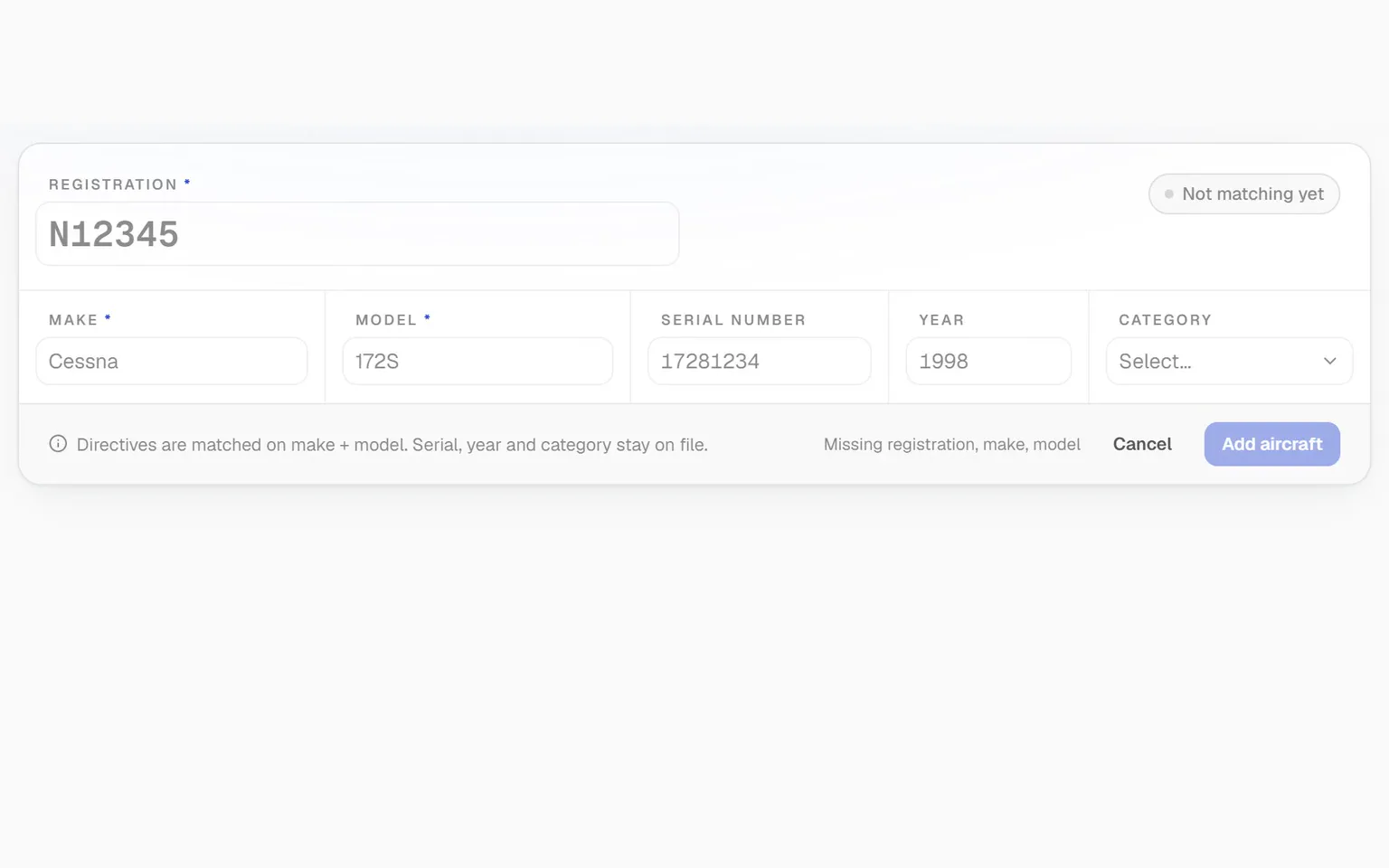
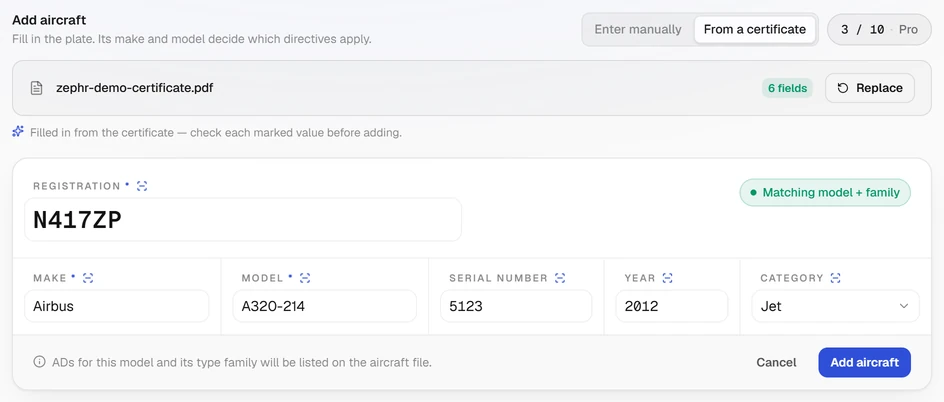
Type its registration, make and model into the plate, or drop in its certificate of conformity and Zephr fills the plate for you. Every value it read is marked, and nothing is created until you have checked them and added the aircraft.
- Enter manually
Registration, make and model. Serial number, year and category stay on file.
- From a certificate
A CoC, an EASA Form 1 or an FAA 8130-3, as a PDF or an image up to 10 MB. A PDF with a text layer is read on every plan; scans and photos on Pro and Ultra.
- Unknown model
If the catalog does not know a model as you typed it, the aircraft file says so and suggests the names it knows. What you entered is never changed.

02Seven authorities
Zephr reads seven authorities.
Each directive is read from the publication of the authority that issued it and keeps its link to the official document. Your plan sets which authorities you search; the rules that match a directive to an aircraft are the same for all of them.
- Every row
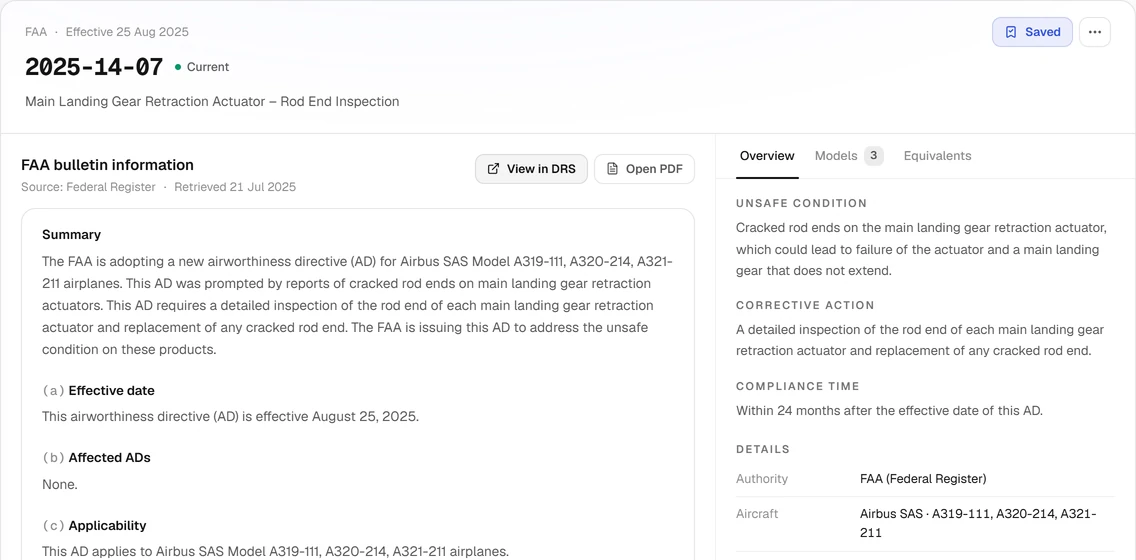
Says which authority issued it and links to the document that authority published. FAA directives can also open on the FAA’s own page in DRS.
- FAA text
Shown with its source and the date it was retrieved.
| Authority | Region | Read from | Plans |
|---|---|---|---|
| FAAFederal Aviation Administration | United States | Federal Register | FreeProUltra |
| EASAEuropean Union Aviation Safety Agency | European Union | EASA AD portal | FreeProUltra |
| TCCATransport Canada Civil Aviation | Canada | Transport Canada CAWIS | ProUltra |
| UK CAAUK Civil Aviation Authority | United Kingdom | UK CAA ADs and MPDs | ProUltra |
| ANACAgência Nacional de Aviação Civil | Brazil | ANAC Brasil | ProUltra |
| ANACAdministración Nacional de Aviación Civil | Argentina | ANAC Argentina | Ultra |
| DGACDirección General de Aeronáutica Civil | Chile | DGAC Chile | Ultra |
Sources & disclaimerRev. 1 · Oct 2026
03Only what applies
Every AD in the make, only your model.
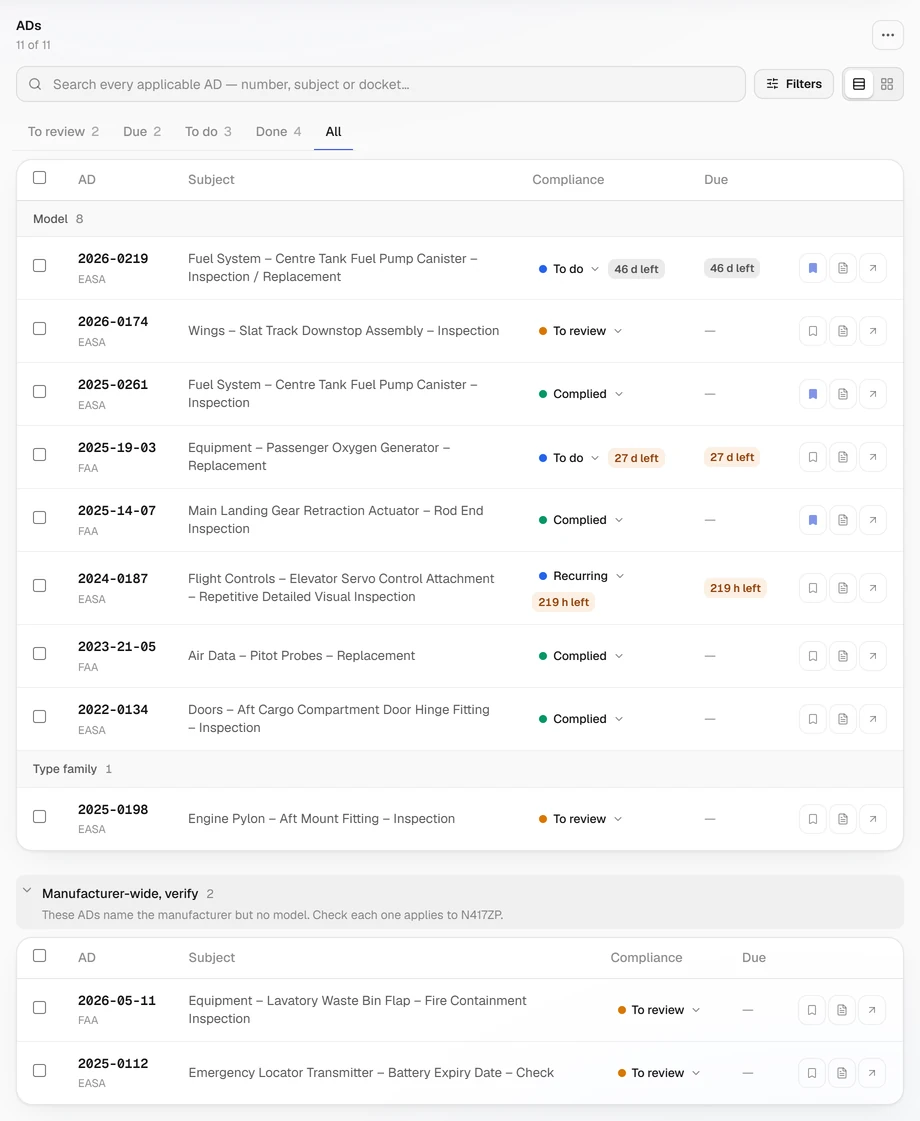
A directive applies when it names your model or another model of its family. One that names only the manufacturer is kept apart, for you to verify. Each one says which rule matched it.
- [ Model ]
It names your model, or a lettered variant of it. A320 → A320neo · 172 → 172S
- [ Type family ]
It names another model of the same family, listed after yours. 737-8 → 737-8200
- [ Manufacturer-wide ]
It names the maker and no model: kept apart, folded, for you to verify.
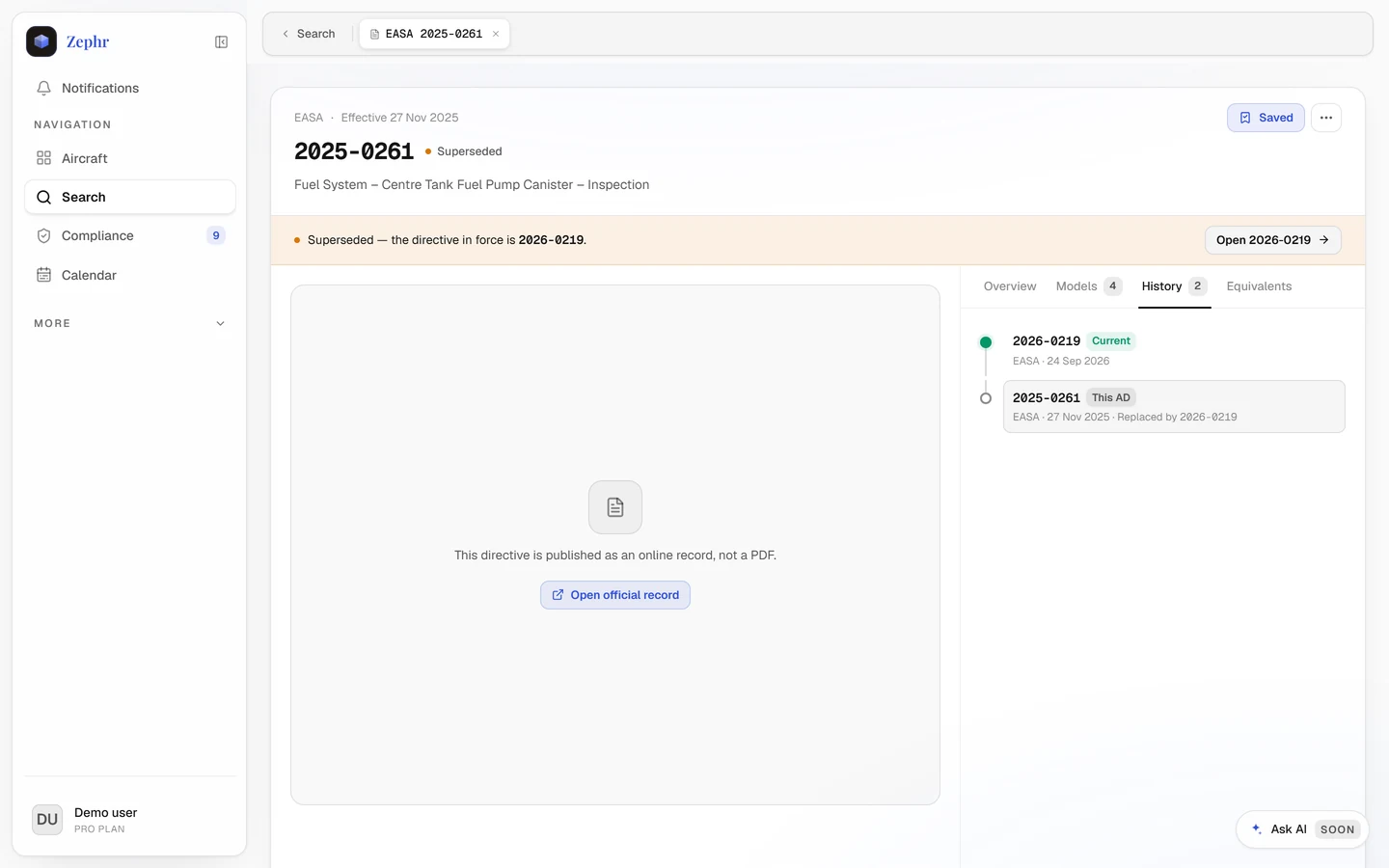
- [ Superseded ]
Open a directive another has replaced and it says so, with a link to the one in force.
- For an A320-214
1,540 of its maker’s 8,735 directives are listed for it (Sep 2026).
04Decide and record
You decide, it is recorded.
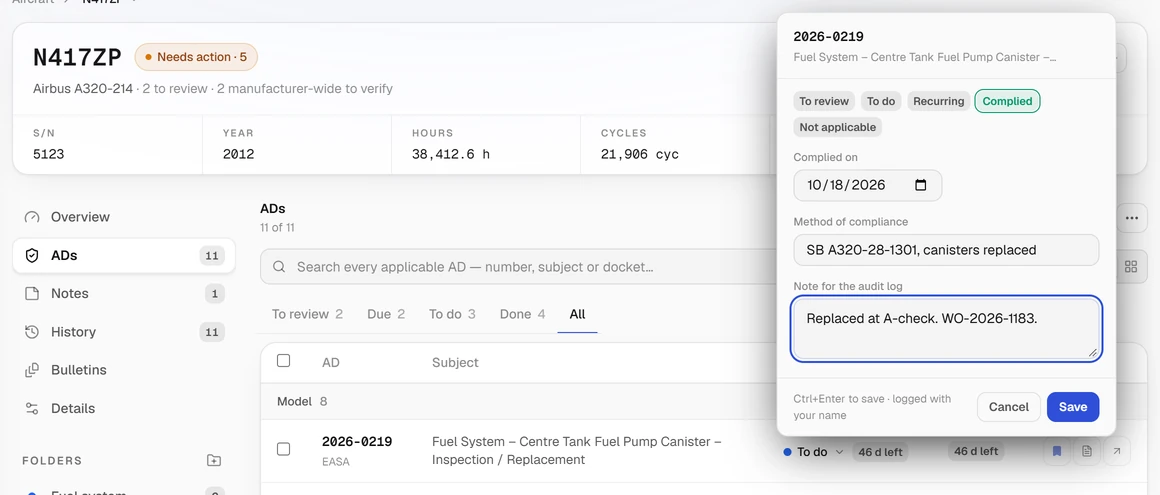
Open a directive’s state and set it: to review, to do, recurring, complied or not applicable. Mark it complied with the date, the method of compliance and a note, and the change goes into the aircraft’s history with who made it.
- Many at once
Select up to 100 directives and mark them in one step. It saves all of them or none.
- Recurring
Repeat every so many hours, cycles or days, whichever comes first.
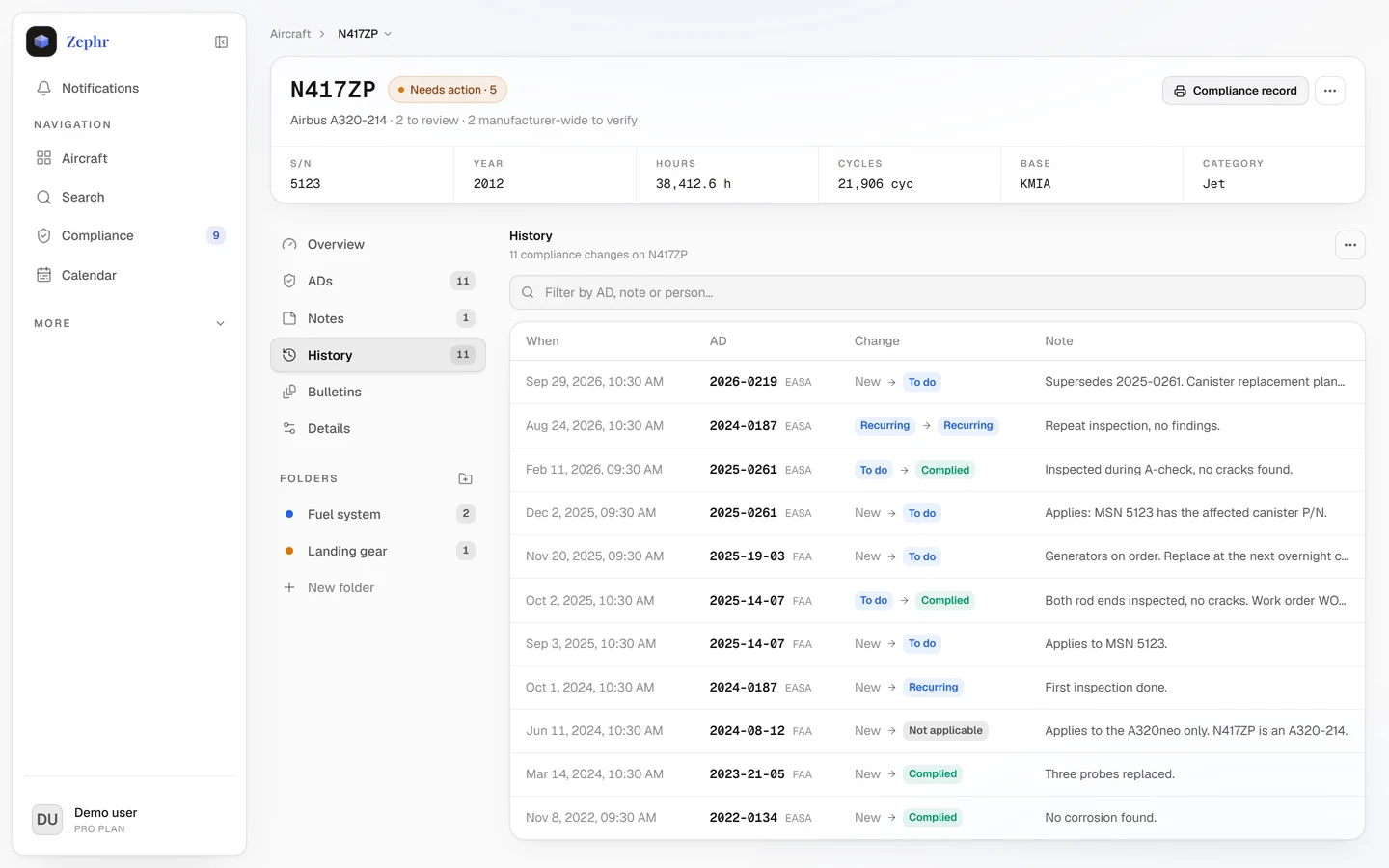
- History
Every change on the aircraft: when, the directive, the state it moved between, the note and who made it.
- Not applicable
What you set aside stays off the aircraft’s list, until you change it back.
05Plan what comes due
Nothing comes due unseen.
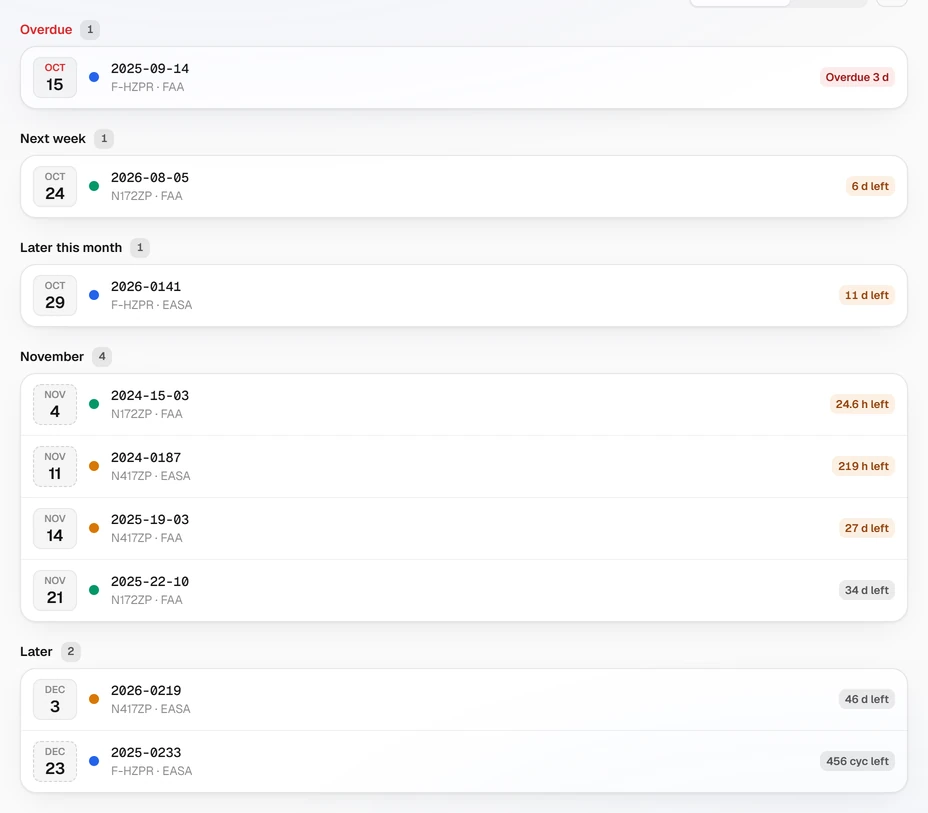
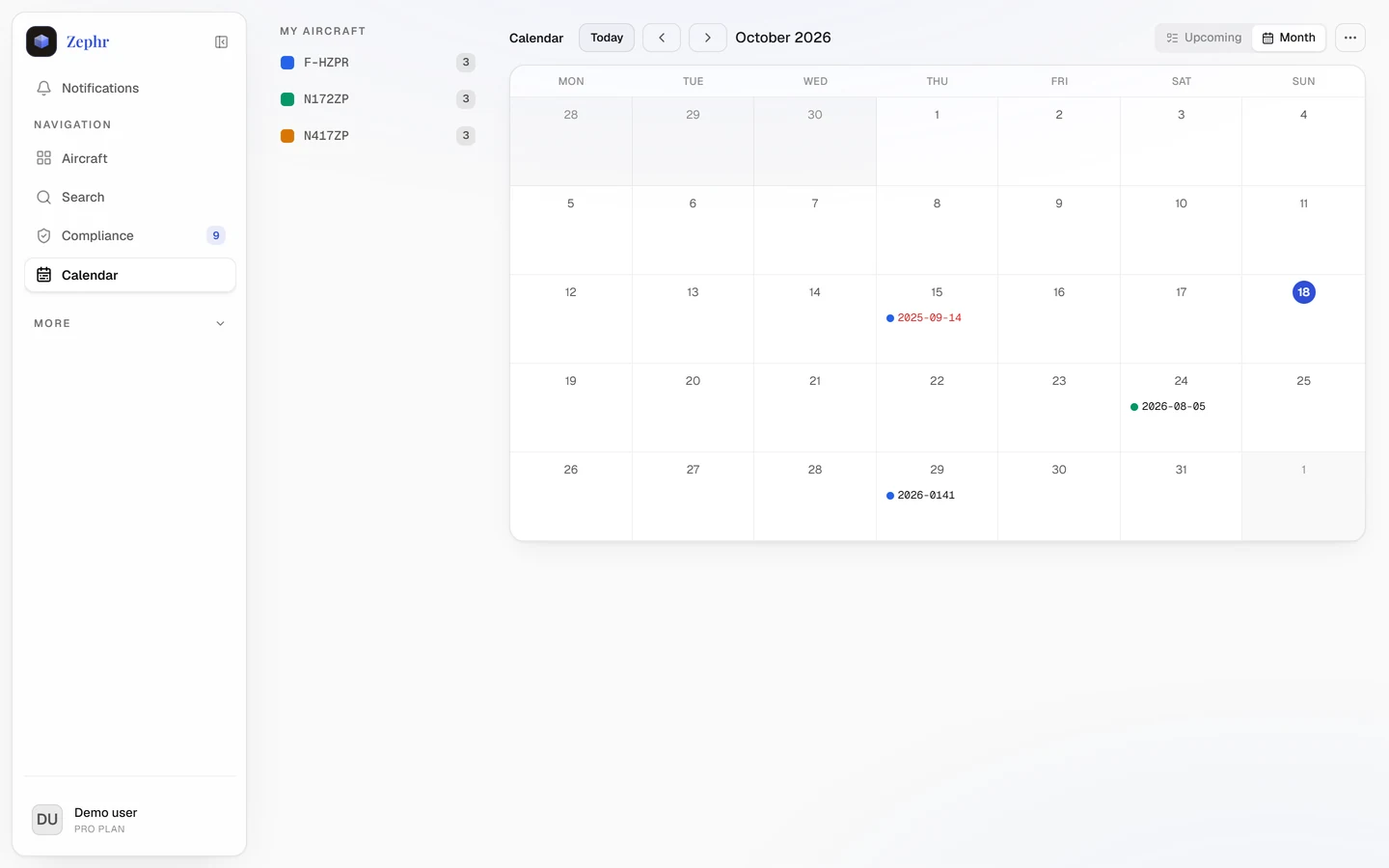
The Calendar holds every open limit of the fleet, one colour per aircraft. Limits in hours and cycles are projected to a date from the aircraft’s hours, cycles and monthly use, and what is overdue comes first.
- Upcoming
A list: overdue, this week, next week, later this month and on. Each item says what is left, in days, hours or cycles.
- Month
The same limits on a month grid.
- Projected
A date worked out from hours or cycles is drawn dashed, so you can tell it from a fixed one.
06Alerts
Told when it matters.
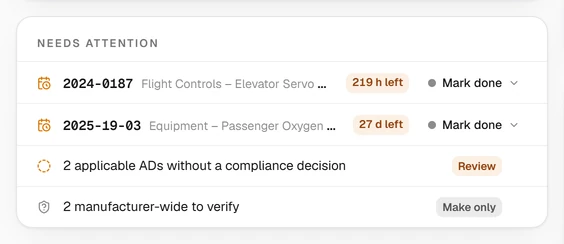
Save a search and turn on its alert: each new directive that matches it reaches you in the app and by email. A week before a limit comes due, the ones projected from hours and cycles included, you get a reminder.
- New directives
Each new directive is checked against your saved searches, with the same rules as the search. Pro and Ultra.
- Coming due
A reminder 7 days before a due date, in the app, and by email if you turn it on.
- Weekly
If you want it, a Monday email with the week’s new directives.
- In the app
Each aircraft’s overview lists what needs attention.
07Ready for the audit
The record, ready when you sign.
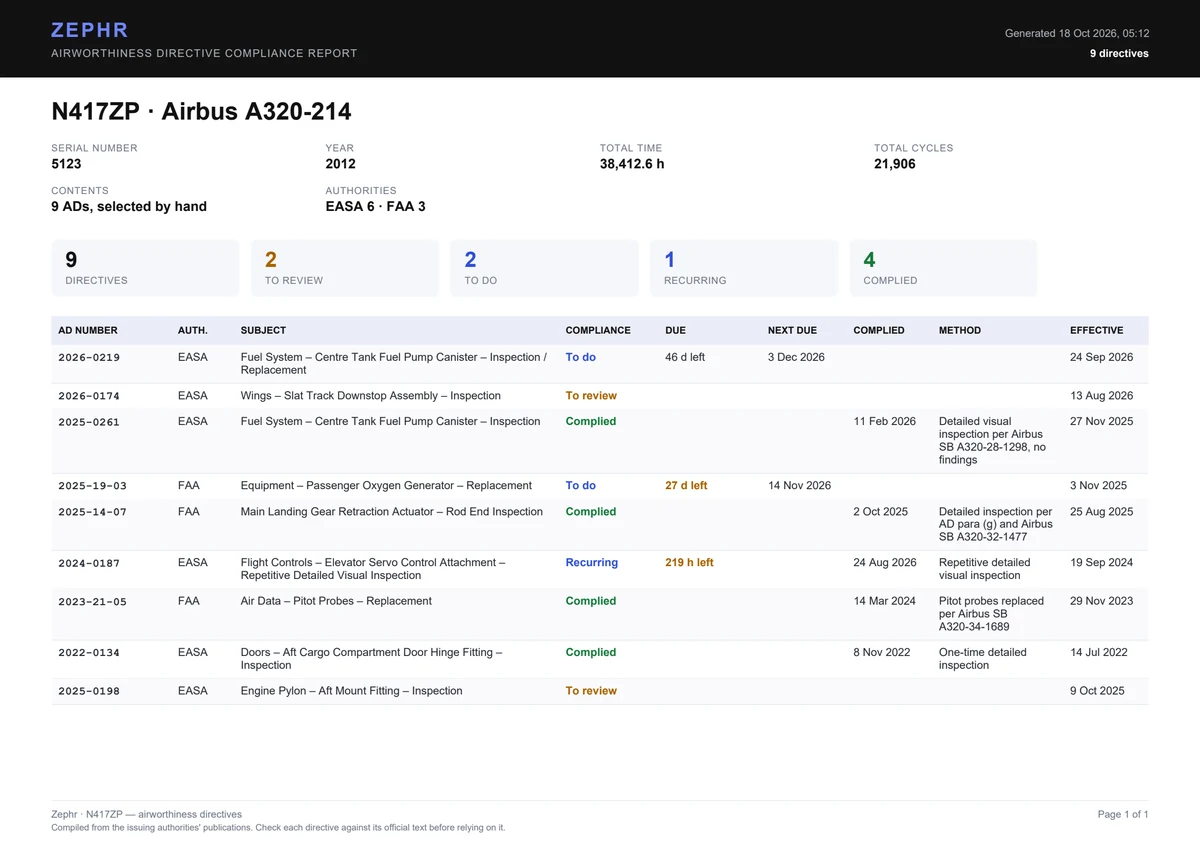
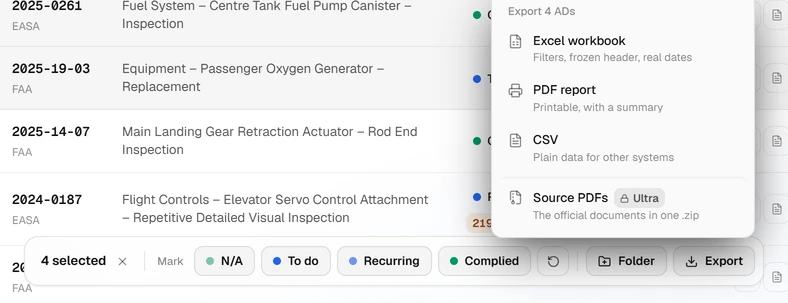
Select directives and export them from one button. The workbook, the report and the CSV carry the same columns as the screen, in the same words, so what you hand over is what you saw.
- Excel workbook
A real .xlsx: a fixed header, filters, dates as dates, links.
- PDF report
The aircraft, the counts, each directive’s compliance, numbered pages.
- CSV
Plain rows for other systems, the header on the first line.
- Source PDFs
The official documents in one zip, up to 60 at a time. Ultra.
08Your data
Your records stay yours.
Your fleet, its records and your notes live in your workspace, kept apart from every other workspace by access rules in the database itself. Cancelling, moving to a smaller plan or a failed payment never deletes a record.
- Where
Hosted on Vercel; the database, sign-in and files on Supabase. Payments through Stripe: card numbers never reach Zephr.
- Protected
Encrypted in transit and at rest.
- Yours to take
Export your data from Settings, and any list to Excel, PDF or CSV. You can delete your account from Settings.
- No tracking
No advertising or cross-site cookies.
09What Zephr does not do
Zephr proposes. You sign.
- 01It does not interpret a directive’s technical content. It finds the directive and keeps the record.
- 02It does not replace the official document. That document governs: confirm against it before acting.
- 03It does not sign. Airworthiness is decided and signed by a person.

10Questions
Before you start.
- How does the free trial work?
- Pro starts with 14 days free, once per account. You add a card at checkout and nothing is charged until the trial ends; cancel before then and you pay nothing. Ultra is charged from day one.
- What does the Free plan include?
- 3 aircraft, FAA and EASA, 50 AD searches a month, 5 saved searches and CSV exports of up to 100 rows. No card needed. Compliance alerts start with Pro.
- Can I cancel anytime?
- Yes. Settings, Billing opens your billing portal, where you can cancel whenever you like. Your account then moves to the Free plan: nothing is locked and nothing is deleted.
- What happens to my data?
- It stays yours. Cancelling, moving to a smaller plan or a failed payment never deletes a record: what is over a plan’s limits stays readable and exportable until you upgrade or trim it. You can delete your account from Settings.
- How does Zephr decide that a directive applies?
- By make and model: a directive applies when it names your model or another model of its family. One that names only the manufacturer is kept apart for you to verify. Only what applies
- Does Zephr replace my engineer’s review?
- No. It finds what applies and keeps the record; a person decides each directive and signs. The authority’s document governs.
- Can I add aircraft from a certificate?
- Yes: drop a certificate of conformity, an EASA Form 1 or an FAA 8130-3 on the new-aircraft plate. Zephr fills the plate and marks each value it read; you check them and add the aircraft. A PDF with a text layer is read on every plan; scans and photos on Pro (50 a month) and Ultra.
- Which authorities does each plan search?
- Free: FAA and EASA. Pro adds UK CAA, Transport Canada and ANAC Brazil. Ultra searches all seven.
- Can I search without adding an aircraft?
- Yes. Search one authority, several or all of your plan’s, by AD number, keyword or service bulletin, and narrow by make and model. “Which AD cites this SB?” answers from a bulletin number.
- Where does the list come from?
- From the seven authorities’ own publications. Each directive links to the document its authority published, which is the one that governs.